



Handwrytten adds physical, handwritten outreach to the place your team already manages customer relationships. Once the app is connected, you can choose a card, write the message, add an optional gift or business card, and send it directly from a HubSpot contact record.
Before you start, make sure you have access to install apps in HubSpot and a Handwrytten account you can connect. The contact you plan to use also needs a complete mailing address.
Handwrytten brings handwritten notes into your HubSpot workflow.
Click here to install the app or find Handwrytten in the HubSpot App Marketplace and install it. After installation, open Connected Apps, select Handwrytten, and go to Settings.
Connect your Handwrytten account when prompted. If your team used an older version of the Handwrytten integration, handle any account migration separately before relying on existing data.
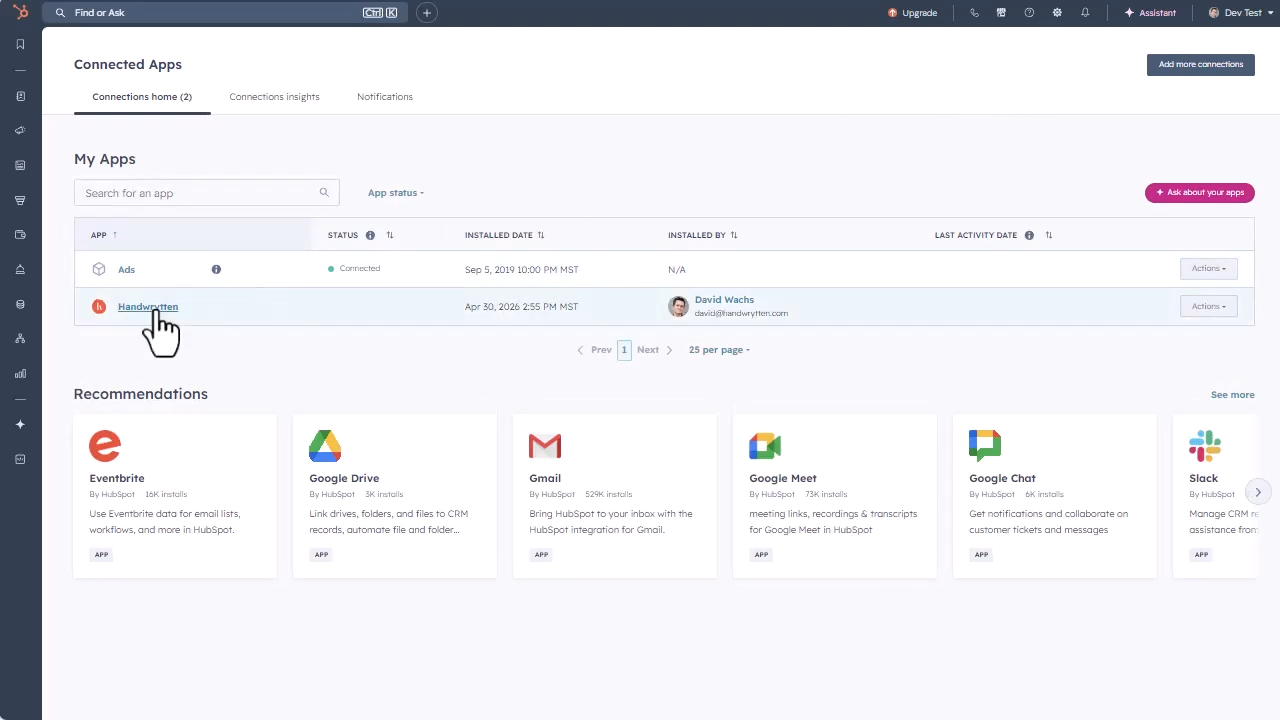
Open Handwrytten from HubSpot’s Connected Apps list after installation.
Open the App cards tab inside the Handwrytten connection. Add the app card to each HubSpot location where people should be able to send notes, such as contact records or other supported CRM records.
This controls where the Handwrytten action appears, so it is worth checking every location your team actually works from.
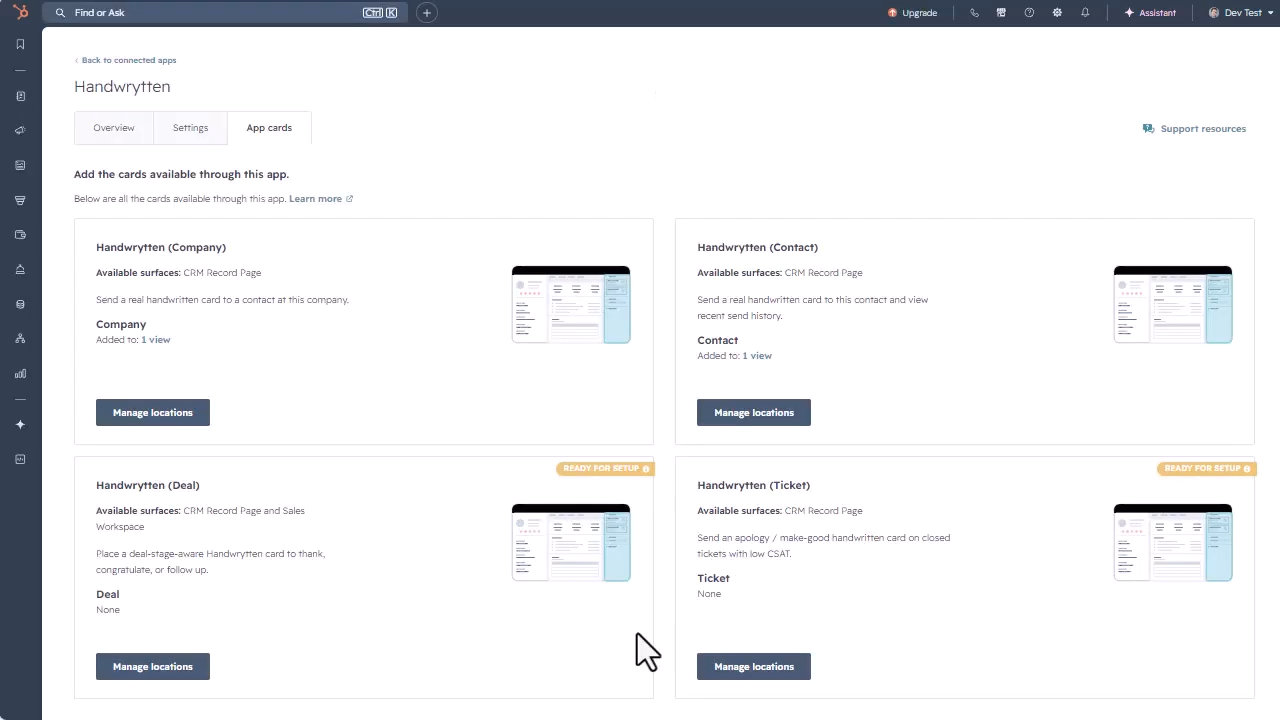
Use App cards to manage where the Handwrytten panel appears in HubSpot.
Open the HubSpot contact you want to reach. Check that the record has a full, deliverable mailing address, then find the Handwrytten card in the sidebar and click Send Handwritten Card.
Choose the card design you want to send. Your custom card designs are available here too. Click Choose, then Next.
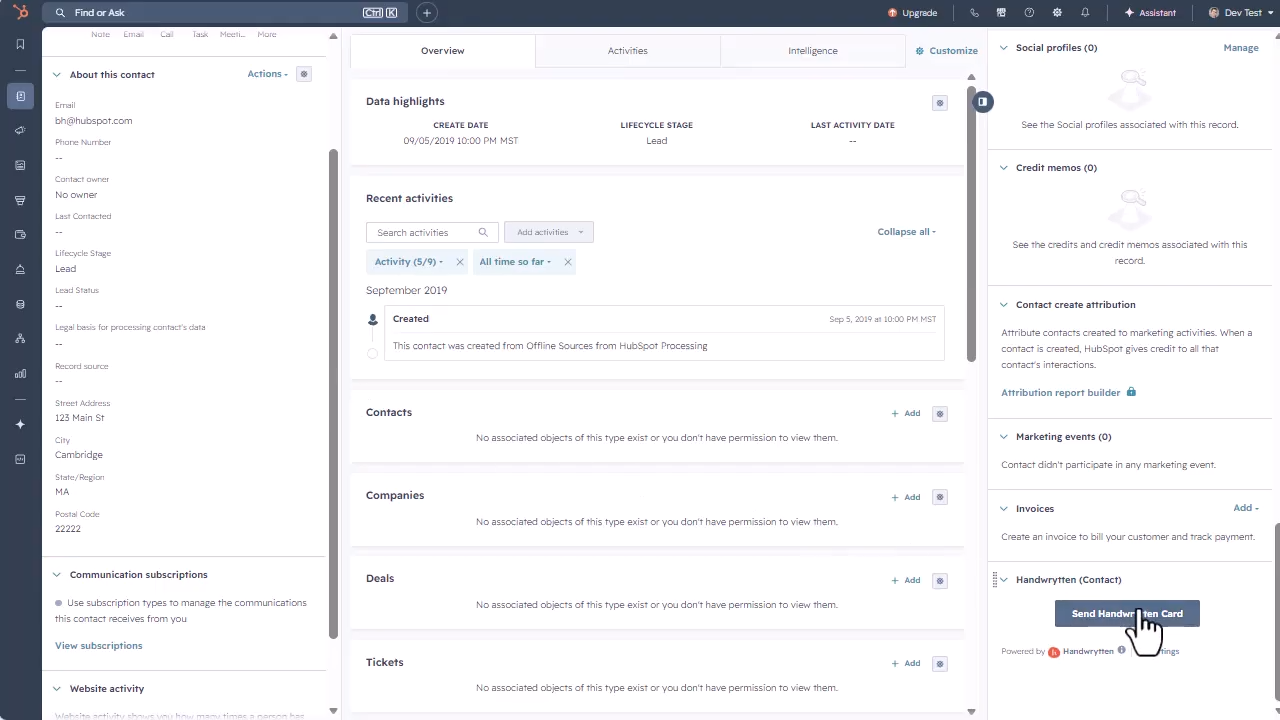
Start a card from the Handwrytten panel on the contact record.
Select a handwriting style, then type your message or pick a saved template. Add a signature if the note calls for one, and click Next when the message is ready.
Give the message a quick proofread before moving on. Names, dates, and offer details are much easier to fix here than after the order is submitted.
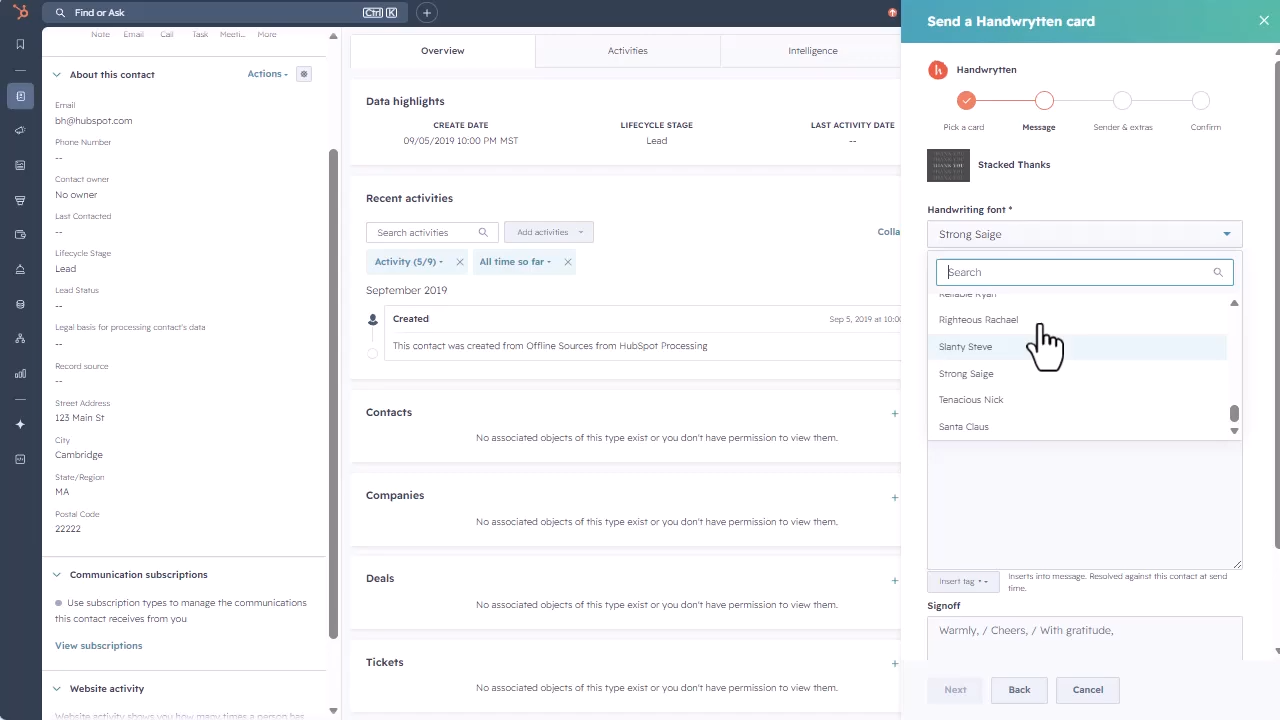
Choose a handwriting style and prepare the card message.
You can include an extra touch before sending, such as a gift card or an inserted business card. Then choose First Class or Presort postage and continue to the final review.
Check the card preview, recipient address, sender details, message, and any extras. Once everything looks right, send the card.
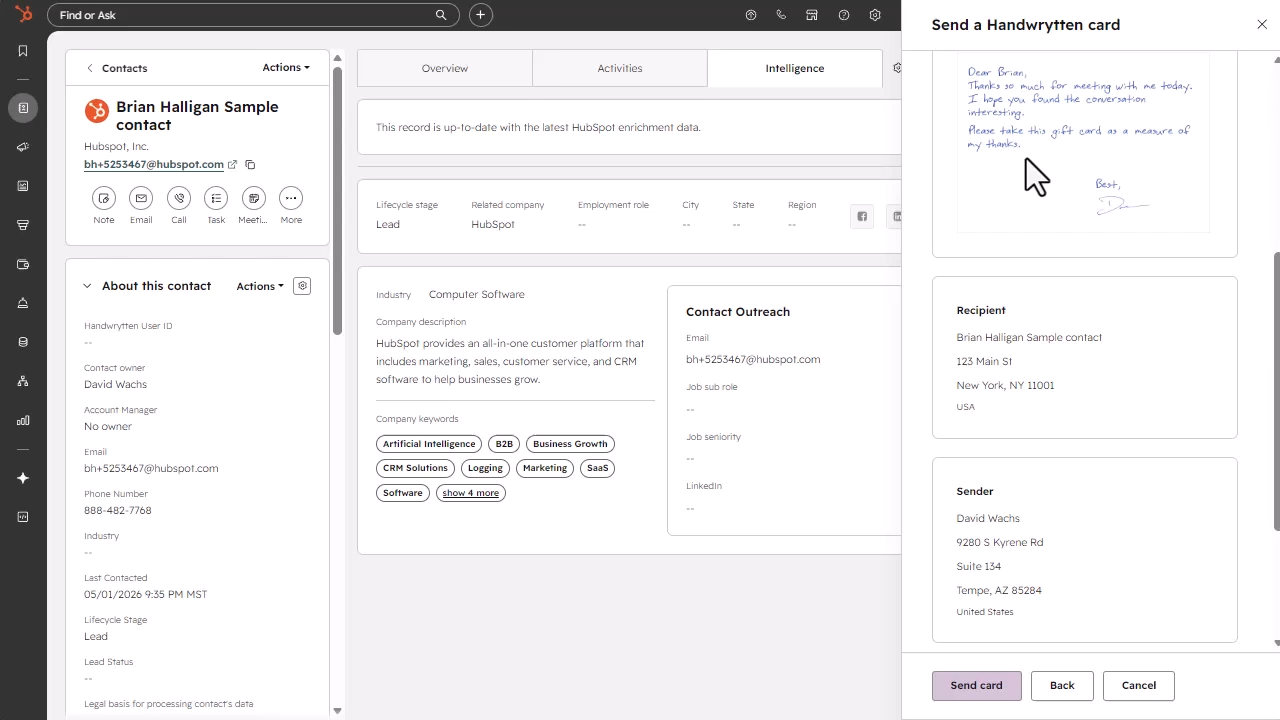
Confirm the card, recipient, sender, and delivery choices before sending.
Return to the contact’s activity timeline and click Refresh. The new Handwrytten activity should appear on the record, giving the team a shared history of the outreach.
For repeatable outreach, the next useful step is the Handwrytten workflows integration. It can trigger cards automatically as part of a HubSpot workflow instead of requiring each send to be started by hand.
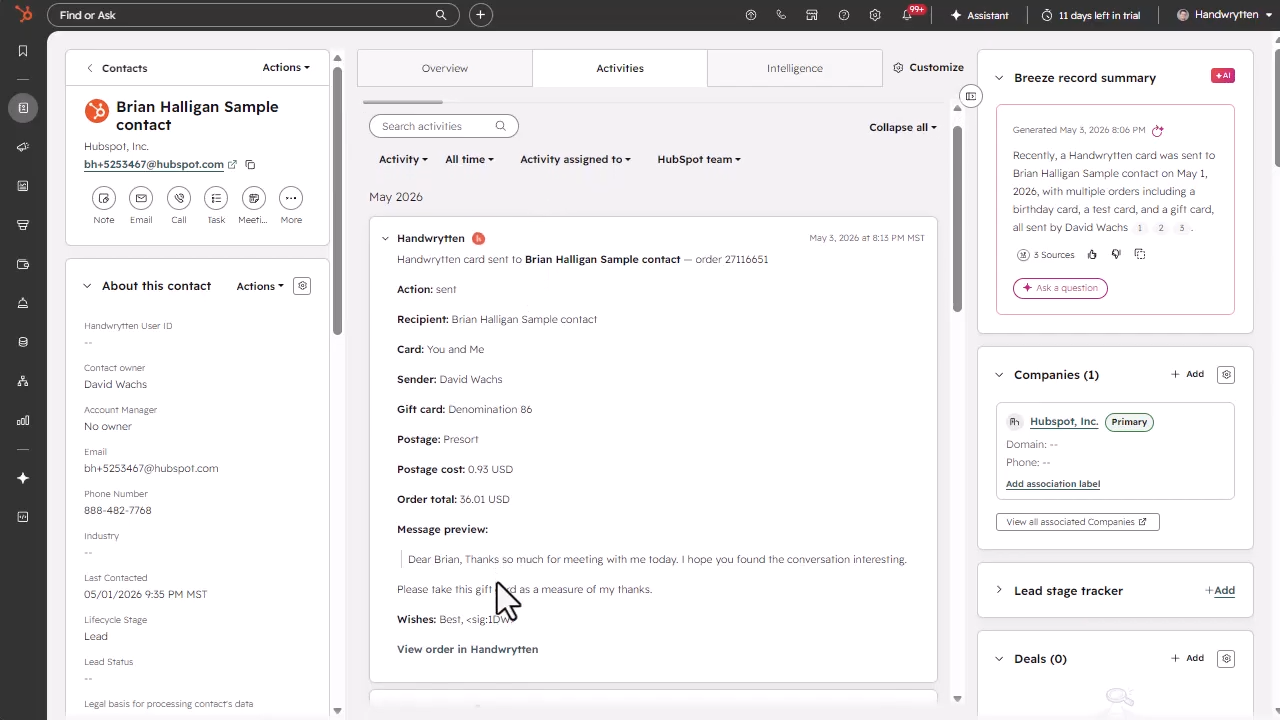
The completed send appears in the HubSpot contact’s activity timeline.


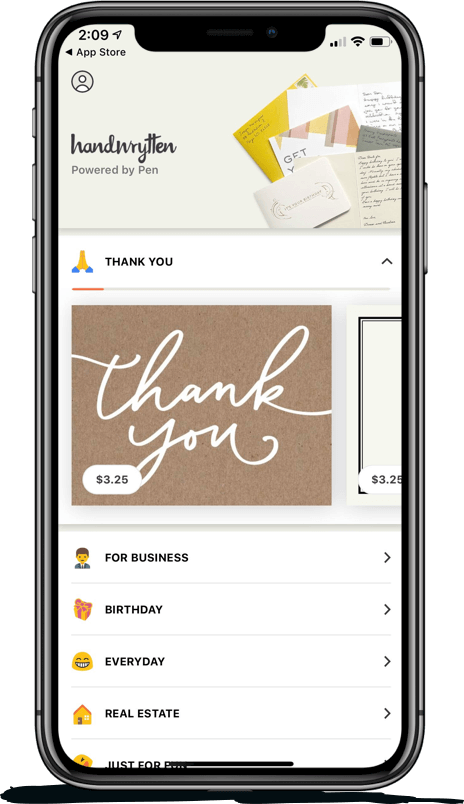
Scale your handwritten outreach, creating positive impressions and long lasting bond.
Sign Up Today!

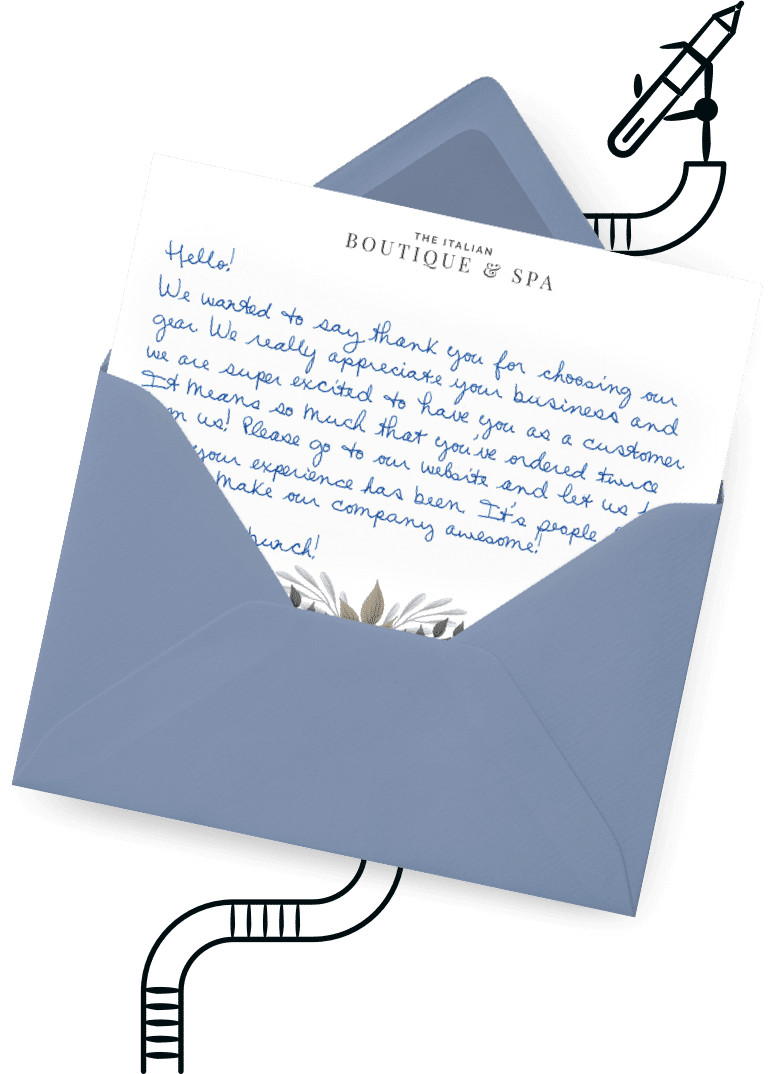

Over 100 designs to choose from or design your own. Our online card customizer makes it simple.
Check Out Our Cards!




Thank you.
